

Invoices
Invoices connect billing to the assignment and client records that produced the work. Access depends on invoice permissions and the features enabled for your organization.
Create An Invoice
Section titled “Create An Invoice”Open Invoices or start from an assignment when the assignment context should prefill the client, fee, and description. Confirm the billing client, issue and due dates, amount, terms, and description before saving.
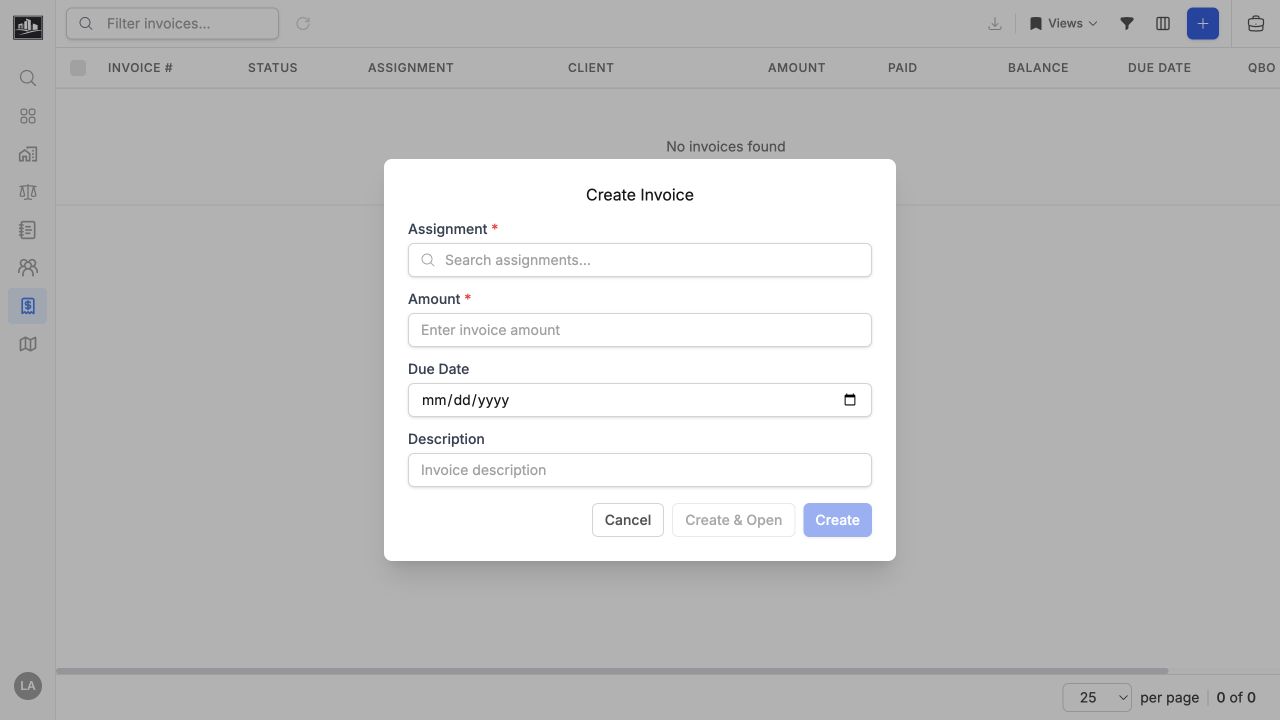
Keep the invoice in Draft while details are being reviewed. Subsequent statuses can include Sent, Viewed, Partial, Paid, Overdue, Voided, and Write Off. Use void or write-off actions according to your accounting policy; do not delete an issued invoice merely to hide it from a view.
Track Payment
Section titled “Track Payment”The invoice workspace exposes amount, balance due, due date, client, assignment, and status. Payments reduce the balance and can move the invoice to Partial or Paid.
Sync Accounting
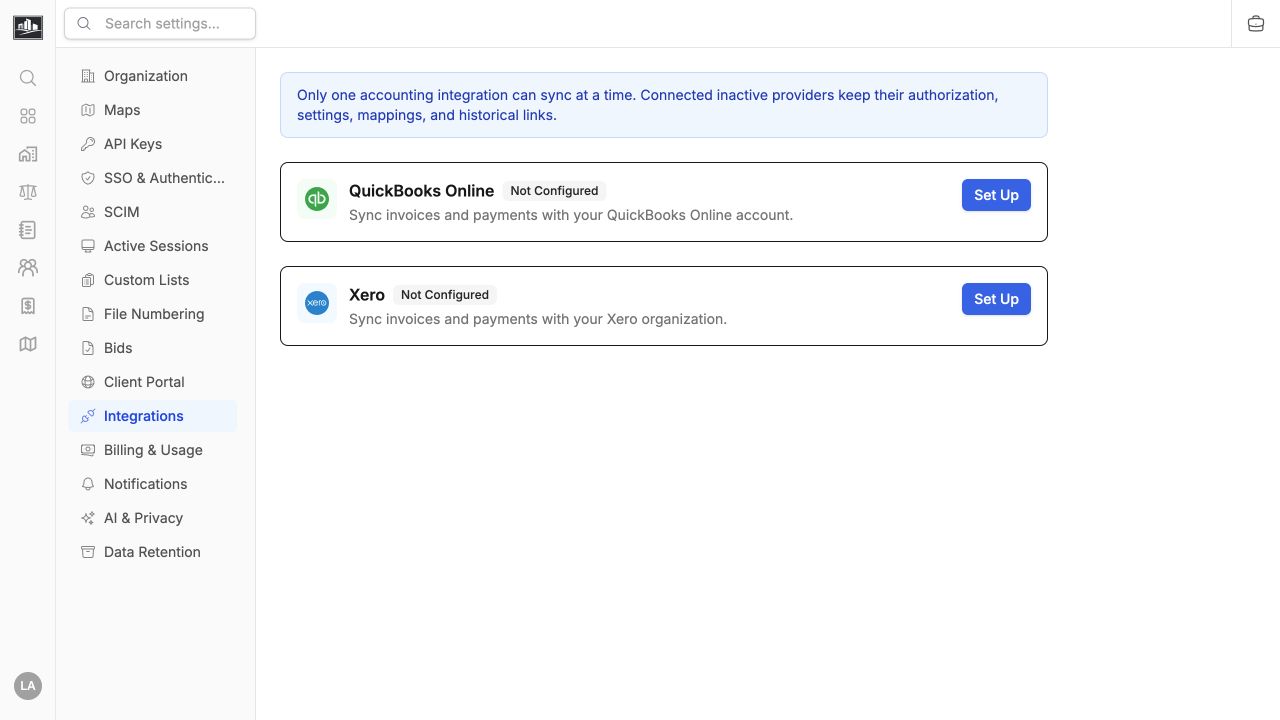
Section titled “Sync Accounting”Organizations can connect either QuickBooks Online or Xero as the accounting target. Before the first live invoice:
- Confirm the client is mapped to the correct accounting customer or contact.
- Preview the invoice handoff when the integration offers a preview.
- Verify terms, description, amount, and external tenant or company.
- Sync one test invoice and confirm the resulting balance and status.
QuickBooks and Xero are mutually exclusive accounting targets for an organization. External payment events can update the local balance after the provider webhook is processed.