

Client Portal
The Client Portal gives an appraisal firm’s clients a separate workspace for submitting requests, following visible assignment details, exchanging messages, and providing documents. Portal users do not receive access to the firm’s internal re-base.io workspace.
Available sections depend on the firm’s portal settings and the records linked to your email address. A firm can enable self-service requests, choose whether bid status is visible, and block portal access for an individual client.
Sign In To The Portal
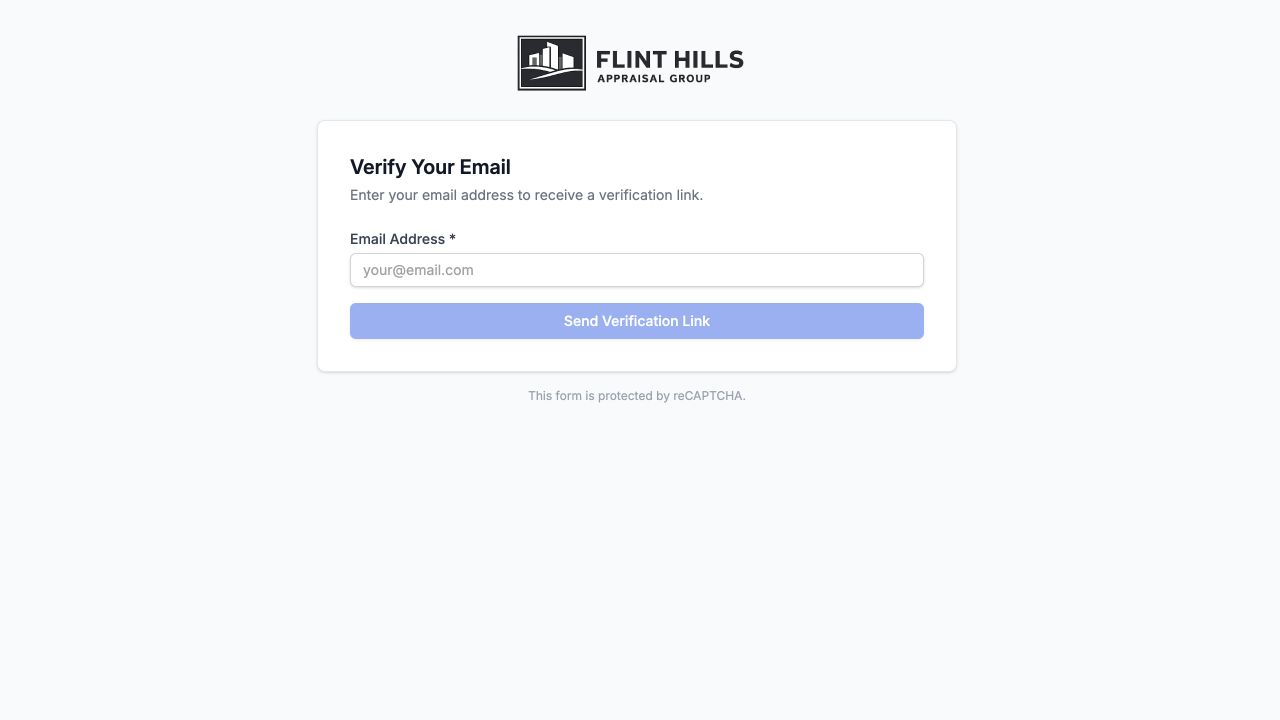
Section titled “Sign In To The Portal”Open the firm’s portal URL and enter the email address associated with your client record. The portal sends a one-time verification code to that address. Enter the current code to start the portal session.
Use the most recent invitation or verification message. Do not forward a private request link or code unless the appraisal firm confirms it is intended for another person.
Open A Request
Section titled “Open A Request”The Bids section shows pending invitations and your prior submissions. If self-service requests are enabled, choose New Request to begin without an invitation. Otherwise, open the pending invitation sent by the appraisal firm.
Submit Details
Section titled “Submit Details”Review the request title, deadline, contact information, and any prefilled property address. Complete the required property, scope, timing, and contact fields, then attach only the documents requested by the appraisal firm.
Before submitting:
- Confirm the property and organization named in the request.
- Remove unrelated personal or confidential material from attachments.
- Verify fee, timing, and access details when those fields are present.
- Save the confirmation or return link if the workflow provides one.
When the firm enables bid-status visibility, a submitted request can also show its current status, agreed fee, estimated completion, assigned appraiser, or linked assignment information as those details become available.
Follow Assignments
Section titled “Follow Assignments”The Assignments section separates active work from completed or cancelled work. Open an assignment to review the reference number, property, status, due date, and appraiser details the firm has made available.
Assignment access also keeps related correspondence in context. Use the assignment page when your question or file belongs to a specific appraisal; use the main Messages area for general client correspondence.
Exchange Messages And Documents
Section titled “Exchange Messages And Documents”Open Messages to review general messages from the appraisal team. Document requests and comments can include a reply area and file upload control. For a request tied to an assignment, open that assignment and reply in its message thread so the response stays connected to the correct job.
Upload only the requested documents and remove unrelated personal or confidential material first. If a request is expired, references the wrong property, or asks for unexpected information, contact the appraisal firm before uploading anything.
Portal Availability
Section titled “Portal Availability”If a bid, assignment, message, or action is missing, the most common causes are:
- The item is linked to a different email address.
- The appraisal firm has not enabled that portal option.
- The invitation expired or has already been completed.
- The client record’s portal access is blocked.
- The portal session expired and requires a new verification code.
Internal staff should see Client Management and Bidding for the controls used to send requests.