

Bidding Pipeline
Bids track prospective work before it becomes an assignment. Use the bidding pipeline to review requests, send bid invitations, move bids through stages, and convert accepted work into assignments.
Review The Pipeline
Section titled “Review The Pipeline”Open Bids from the main navigation. The default view is a Kanban pipeline, with the same records also available in table, split, and map views.
Use the toolbar to:
- Filter by bid type with the Bid Type control.
- Filter lanes and source types with the quick filter button.
- Search, apply advanced filters, choose saved views, and export table results.
- Open Send Bid Request or the Email Triage Queue.
Managers and admins can also see pipeline summary counts for open, overdue, rush, and due-soon work.

Triage Incoming Requests
Section titled “Triage Incoming Requests”Open Email Triage Queue from the Bids toolbar when incoming requests need review before they become bid records. The queue is designed for requests from intake email, public bid forms, and external form submissions.
Use bid triage to:
- Confirm whether an inbound message is a bid request, inquiry, spam, or irrelevant message.
- Review the AI confidence score before deciding whether a request should be converted into a bid.
- Search by sender or subject, then filter by status or source.
- Select multiple intake items and approve, reject, or delete them in bulk.
- Open a request to review the original message, submitted data, attachments, extracted fields, and missing-field notes.
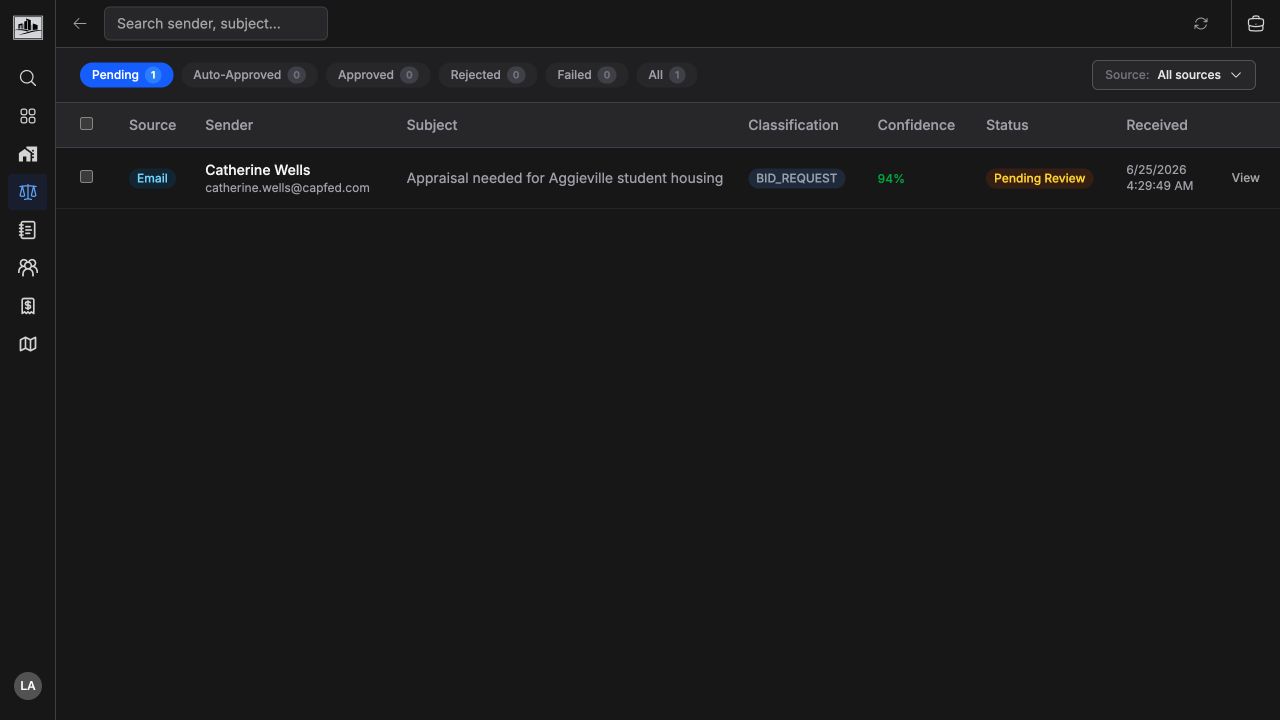
The status tabs separate triage work:
| Status | Use it for |
|---|---|
| Pending | Items waiting for manual review. |
| Auto-Approved | High-confidence items that were converted automatically. |
| Approved | Intake items that were manually converted into bids. |
| Rejected | Items reviewed and declined with an optional reason. |
| Failed | Intake items that could not be processed or converted. |
| All | A complete intake history across statuses. |
Use the Source filter to narrow the queue to email, public form, or external form submissions. Use Refresh data after testing intake rules or waiting for new email to arrive.
Review Extracted Details
Section titled “Review Extracted Details”Click View on an intake row to open the review panel. The panel keeps the AI analysis, original email or form submission, attachments, and extracted client, property, and bid fields together.
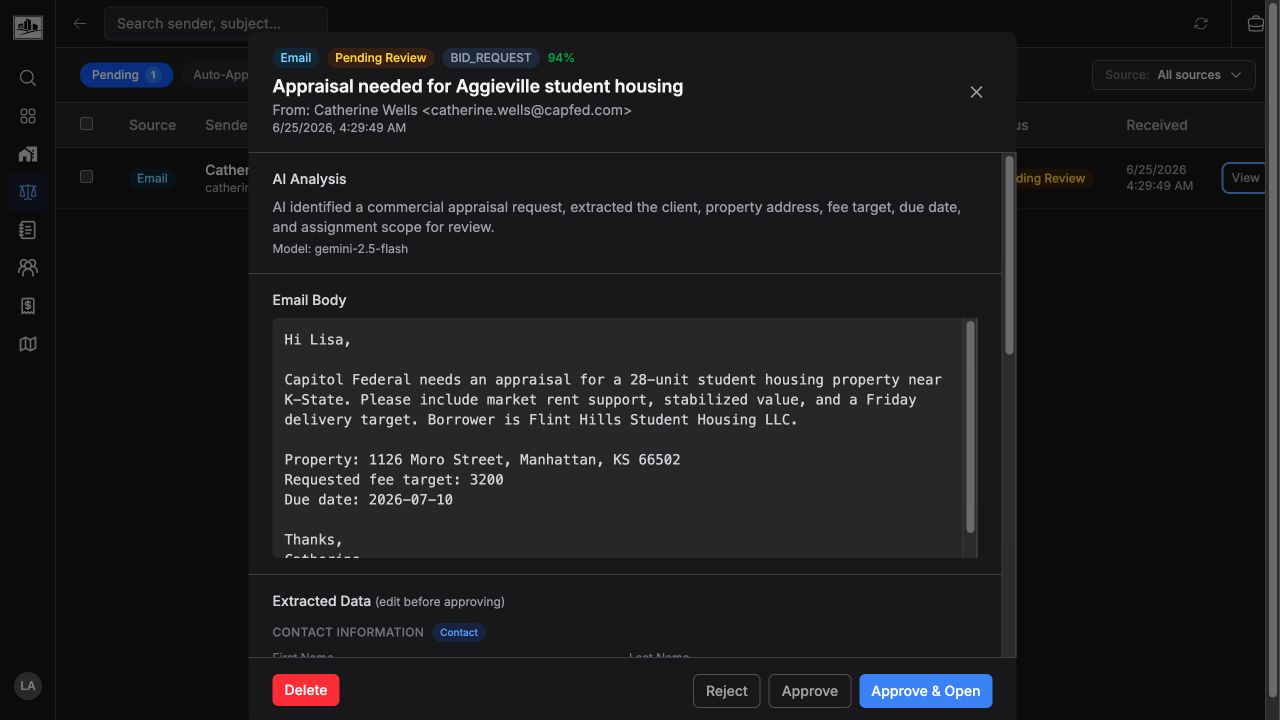
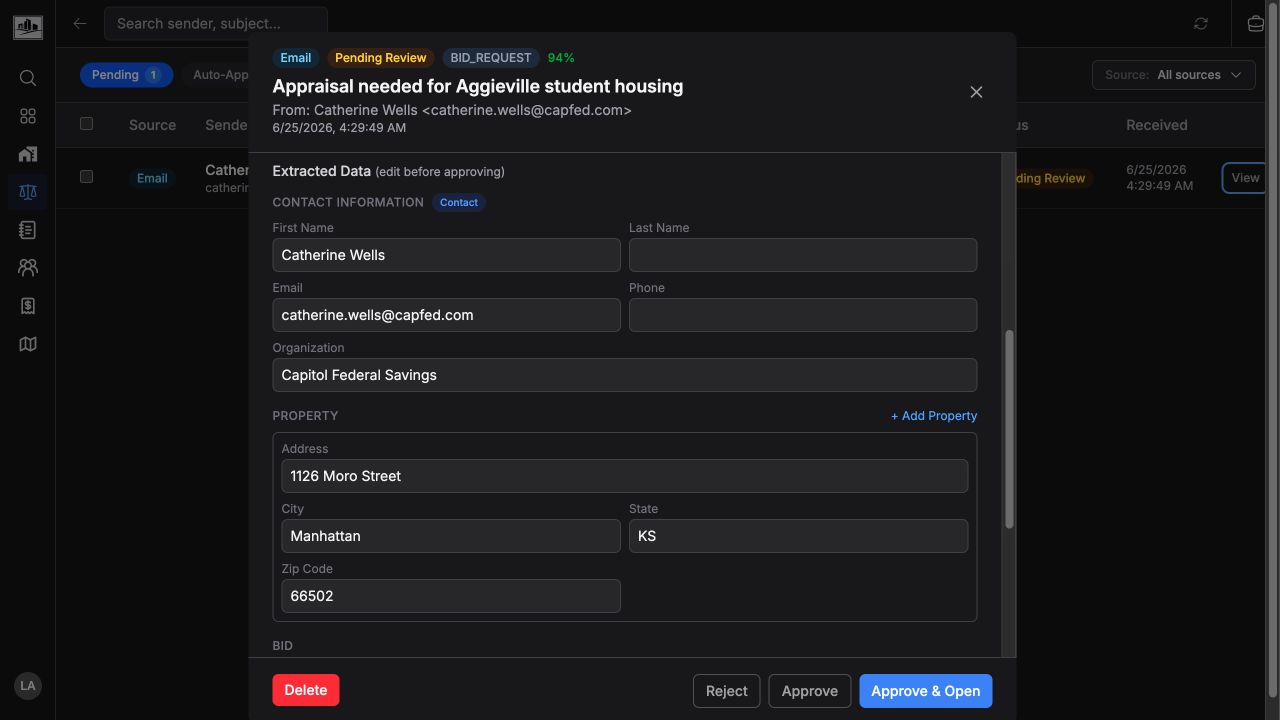
Review and edit extracted fields before approving. The client and property fields become linked bid records when the intake item is approved, so correct names, email addresses, property addresses, fee targets, due dates, and scope details while the source message is still visible.
Use Approve to create the bid and stay in the queue. Use Approve & Open to create the bid and open the new bid detail page. Use Reject when the request should remain in history with a rejection reason. Use Delete only for intake items that should be removed rather than retained as reviewed work.
Configure Intake Rules
Section titled “Configure Intake Rules”Admins configure bid triage from the Bid Triage settings section. The intake email address can be copied and shared with clients so emailed requests land in the queue. AI analysis can be enabled to classify inbound messages, extract bid details, and show a confidence score to reviewers.
Email auto-approval rules control whether requests require manual review:
- Require manual review sends all email intake items to the triage queue.
- Enable auto-approve converts high-confidence email bid requests into bids automatically.
- The confidence threshold decides which email requests are auto-approved and which ones remain pending.
Public and external form submissions have their own auto-approve controls. When manual review is required, those submissions appear in the same triage queue with source badges so reviewers can separate them from email.
Move Bids Through Stages
Section titled “Move Bids Through Stages”In Kanban view, drag a card between lanes or use the card actions to move a bid. Open stages can be configured by the organization, so lane names may differ by workspace.
When a bid moves to a won stage, re-base.io prompts for acceptance details. You can record the agreed fee, confirm due dates, and create one or more assignments from the bid’s linked properties. When a bid moves to a lost or declined stage, re-base.io records the lost reason before completing the transition.
Create Assignments From Bids
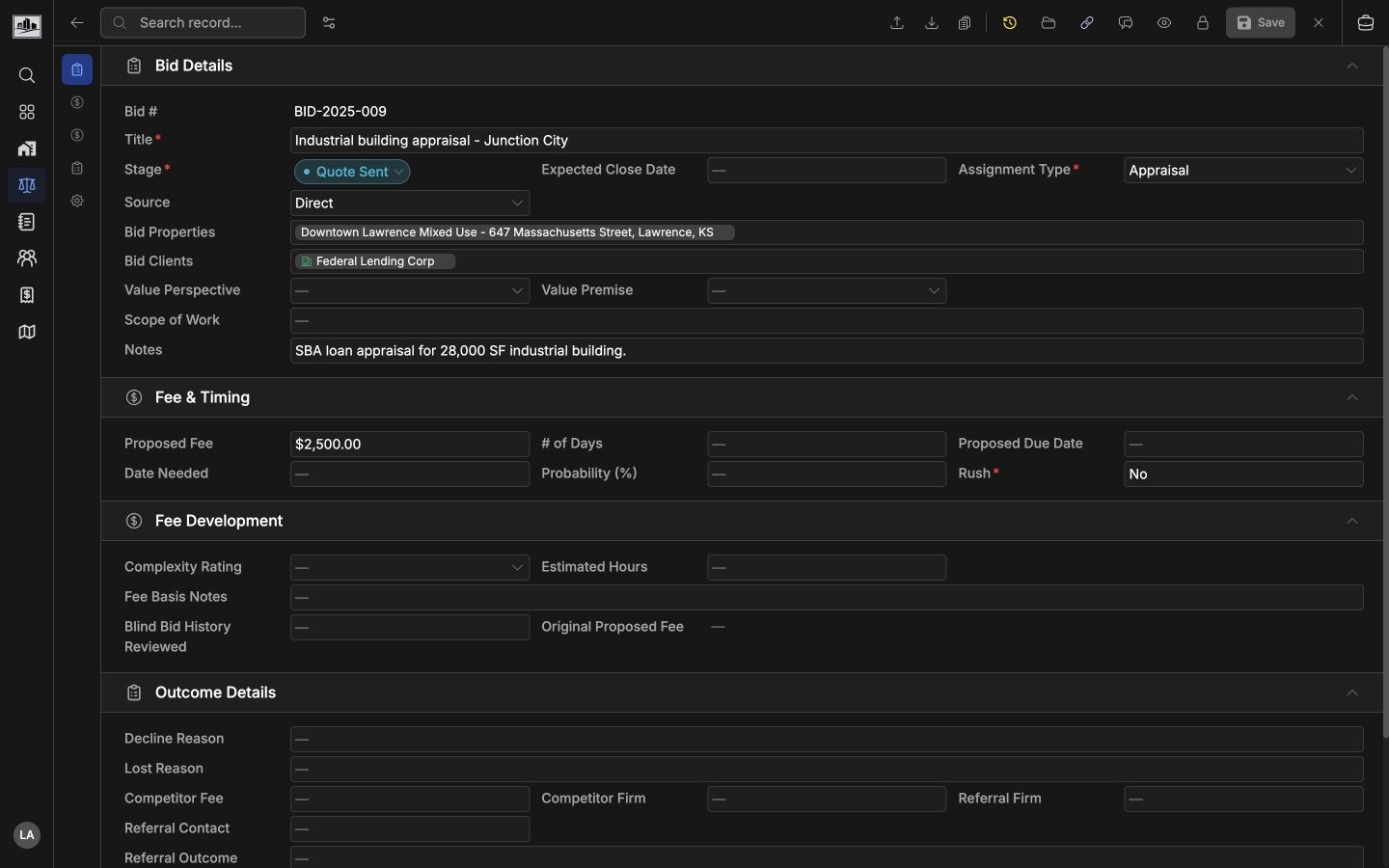
Section titled “Create Assignments From Bids”Use Create Assignment from a bid row, quick view, or the bid detail toolbar when the work should become an assignment. This creates the assignment from the bid without requiring the bid to be in a won stage, so teams can start production work while the bid stage still reflects the current pipeline status.
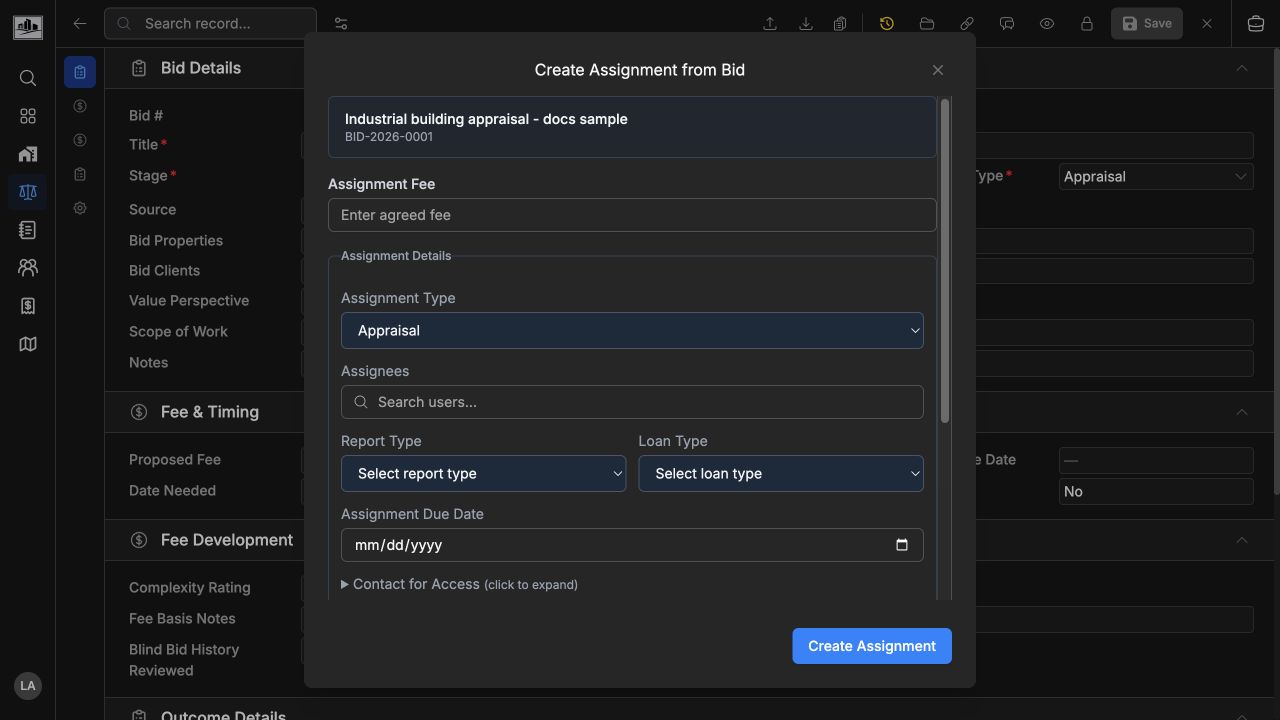
The modal carries forward the bid title, bid number, assignment type, notes, linked clients, and linked properties where available. Before creating the assignment, confirm the assignment fee, due date, report type, loan type, assignees, and contact-for-access details. If the bid has multiple linked properties, use property grouping to create one assignment or split the bid into multiple assignments.
Accepted bids can still be converted as part of the Accept Bid workflow. When you accept a bid, enable Create assignment from this bid to record the won outcome and create the assignment in the same step. Use the standalone Create Assignment action when the assignment should be created without changing the bid stage.
Work From Other Views
Section titled “Work From Other Views”Use table view when you need column edits, bulk review, saved views, or exports. Use split or map view when location affects the decision. Map search areas and advanced filters stay connected, so clearing an active map filter also updates the list.
Bid source fields distinguish manual entries, email intake, invitations, portal submissions, public forms, and external forms. Use the source filter when reviewing where requests are coming from.
Related Features
Section titled “Related Features”- Assignments & Workflow for accepted work.
- Client Management for contacts used in bid requests.
- Interactive Mapping for location review.