

Filtering & Saved Filters
Filtering is available on entity lists such as properties, comparables, bids, clients, and assignments. Filters control the table, saved views, exports, and map-linked list views.
Use Table Filters
Section titled “Use Table Filters”Most list pages include search, column controls, sorting, and an advanced filter drawer. Advanced filters are built as rule groups, so you can combine fields with and or or logic.
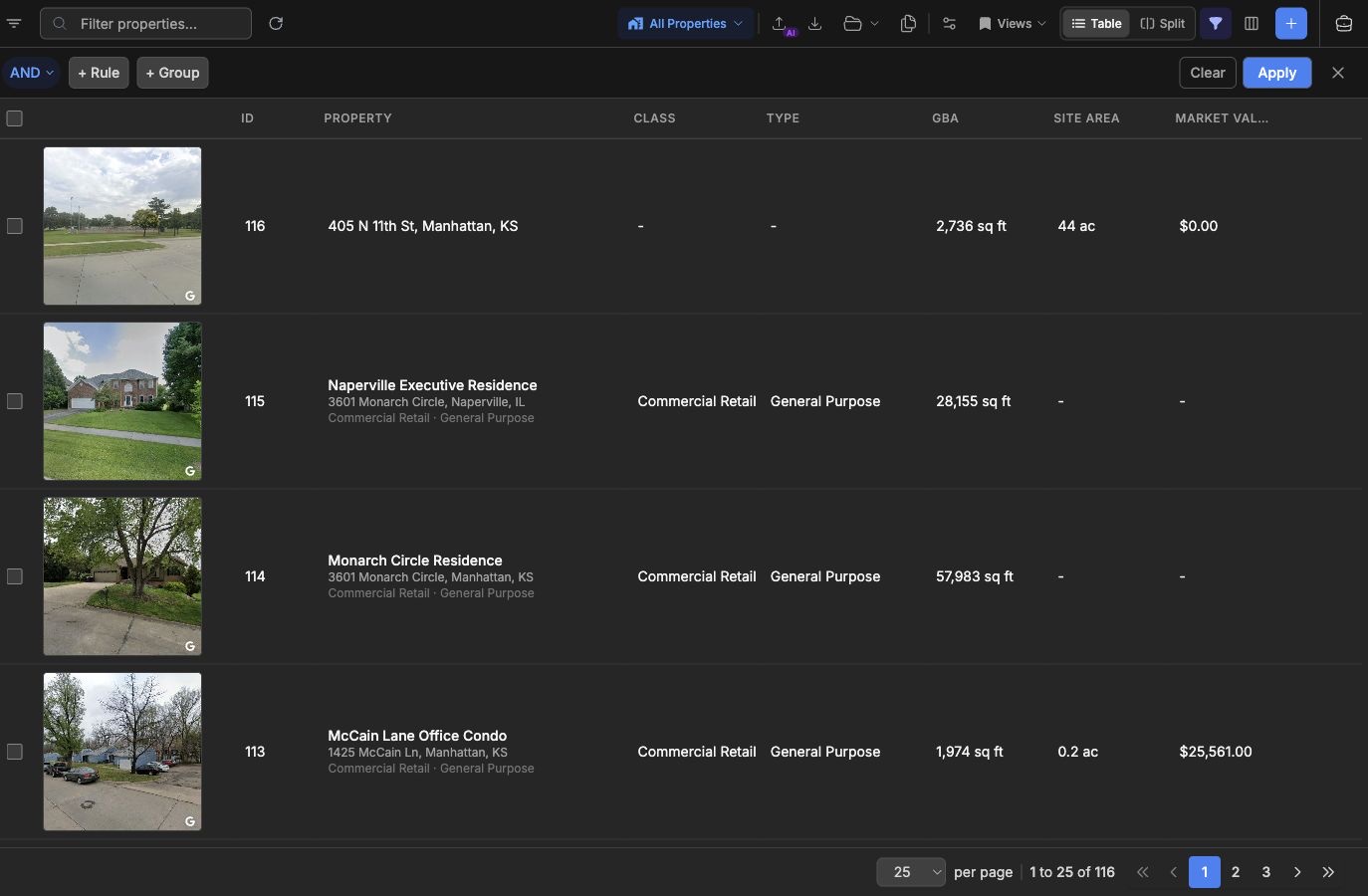
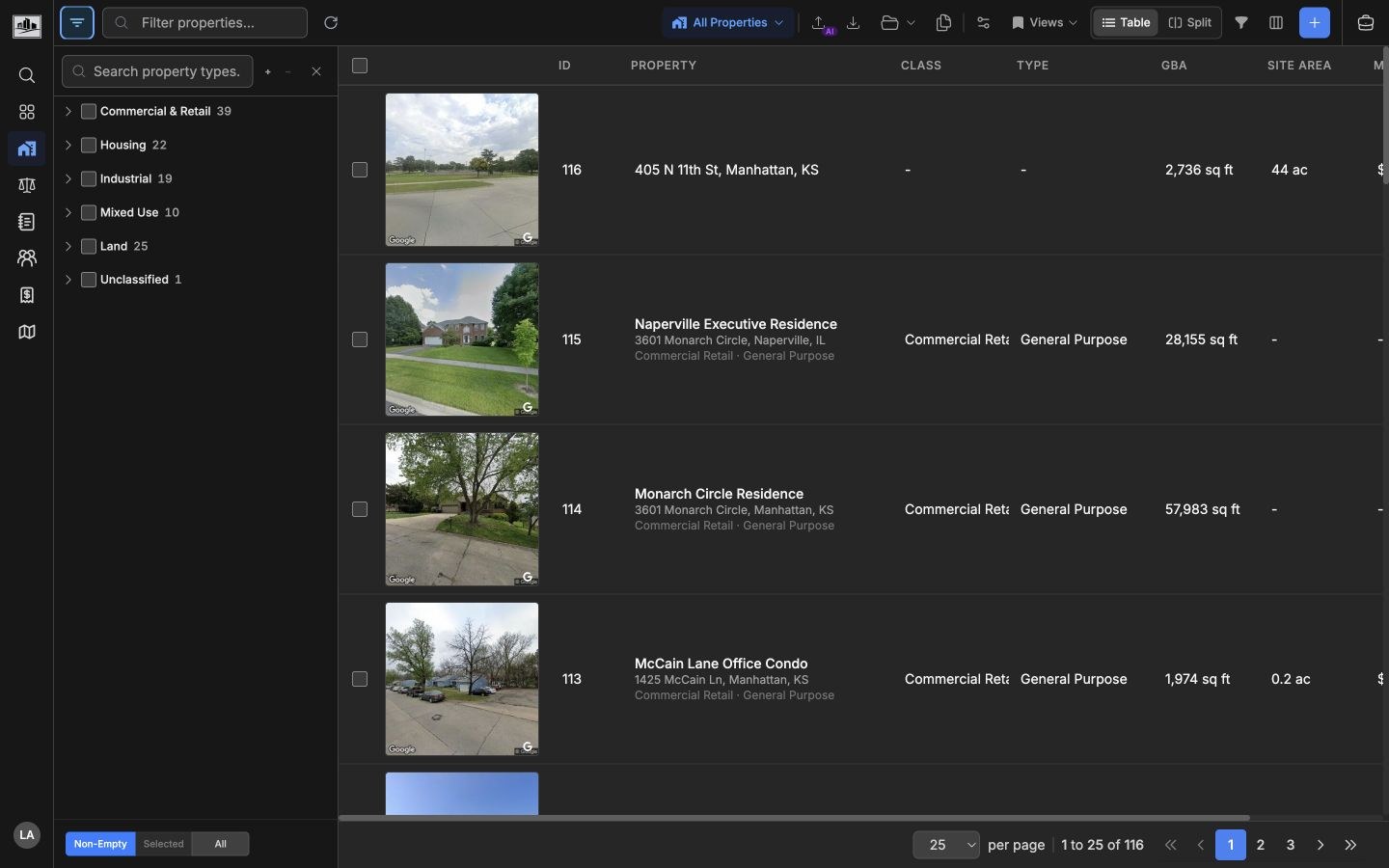
The filter drawer uses the fields for the current entity. In comparable views, filters can include comparable-specific fields and shared property fields. In property views, the Property Type Filter uses the Property Use Classification System (PUCS) hierarchy for class, type, and subtype selection.
Save Views
Section titled “Save Views”In the table toolbar, saved filters are labeled as Views. Use Views to save the current filter setup, load a saved setup later, set a default view, or open the full manage panel.
Before saving, set up the table the way you want it: apply advanced rules, pick PUCS classes or types, change the sort order, and adjust visible columns if the column layout should travel with the view.
Open Views and choose Save. Enter a view name, then choose the save options that match how the view should be reused.
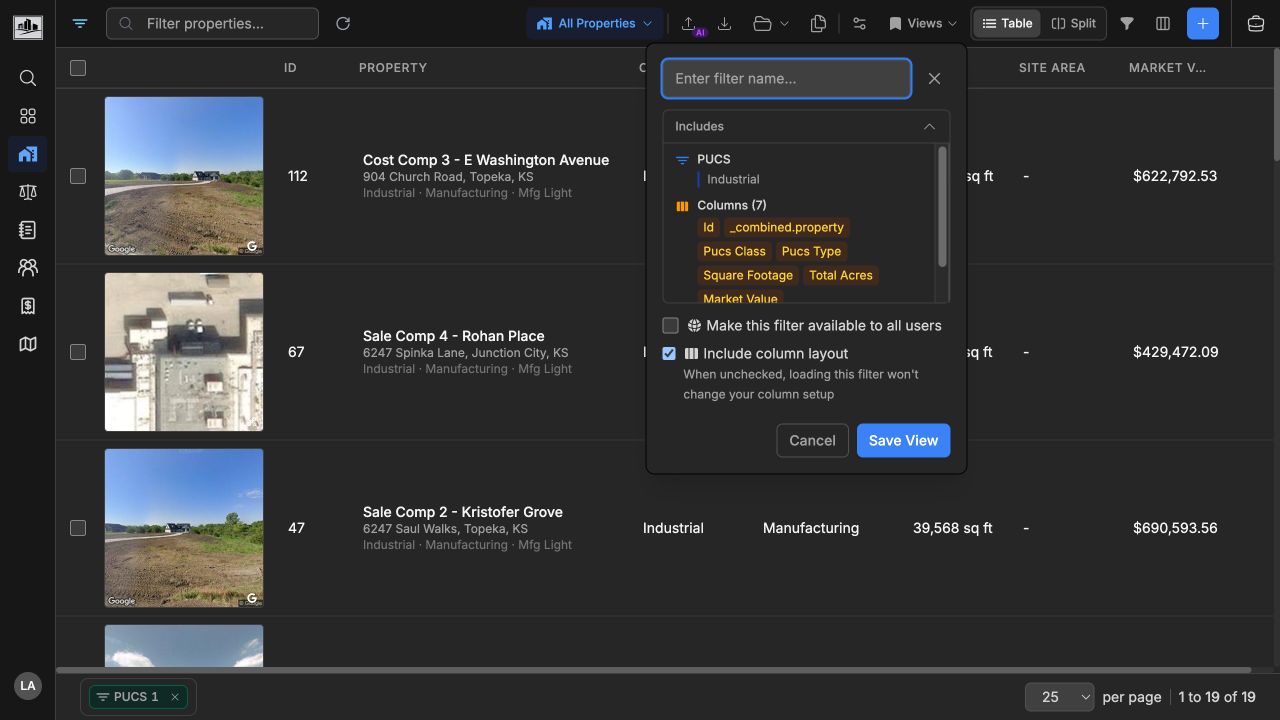
A saved view can include:
- Advanced filter rules.
- PUCS selections, when used on property-related views.
- Sort order.
- Visible column layout, if Include column layout is checked.
If Include column layout is unchecked, loading the view applies the filters and sort without changing the user’s current columns. If Make this filter available to all users is visible and checked, the saved view is global; otherwise it is personal to the user.
When a saved view is active, the Views button changes to that view’s name. Open the menu to load another view, clear the current view, mark a view as your default with the star, open Manage Views, or save the current setup again.
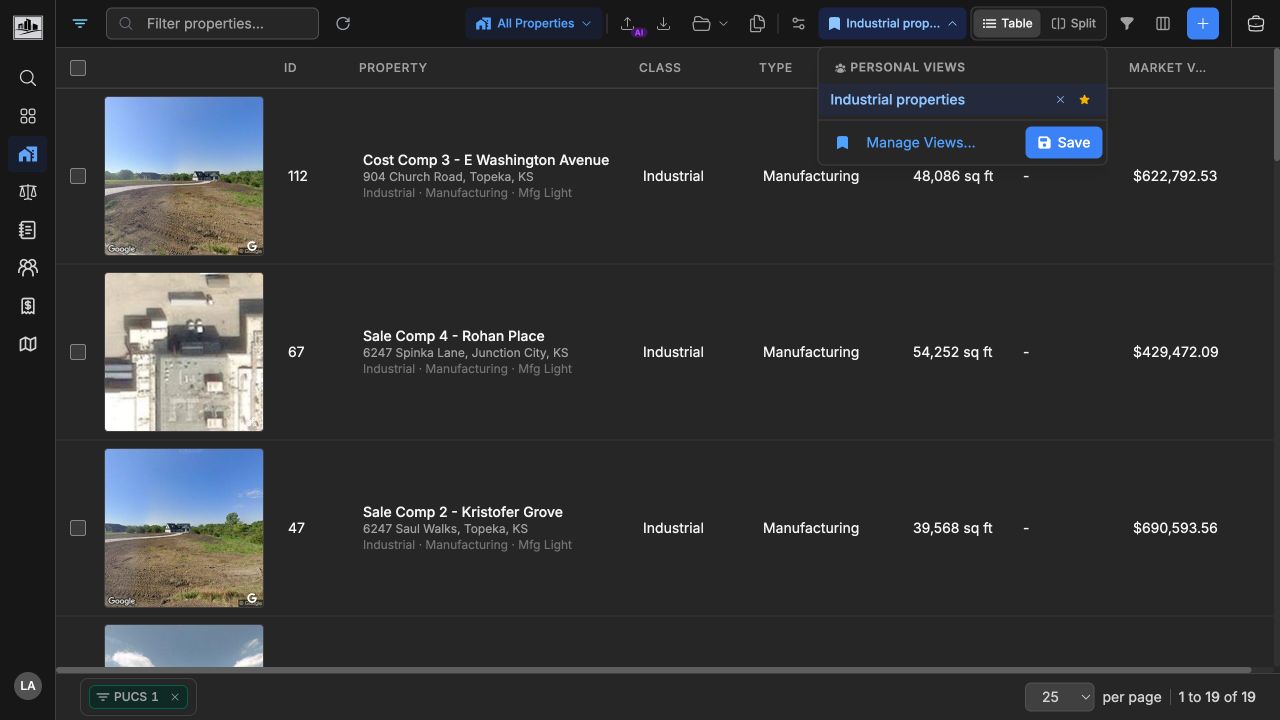
To update an existing saved view, load it, adjust the filters, then open Views and choose Save. If the form keeps the same name, the existing view is updated. If the name is changed, a new saved view is created instead.
Manage Saved Filters
Section titled “Manage Saved Filters”Choose Views > Manage Views to review saved filters in one panel. The panel groups system, global, and personal views when those types are available. Expand a row to see the saved criteria, including PUCS selections, advanced rules, saved columns, and sort order.
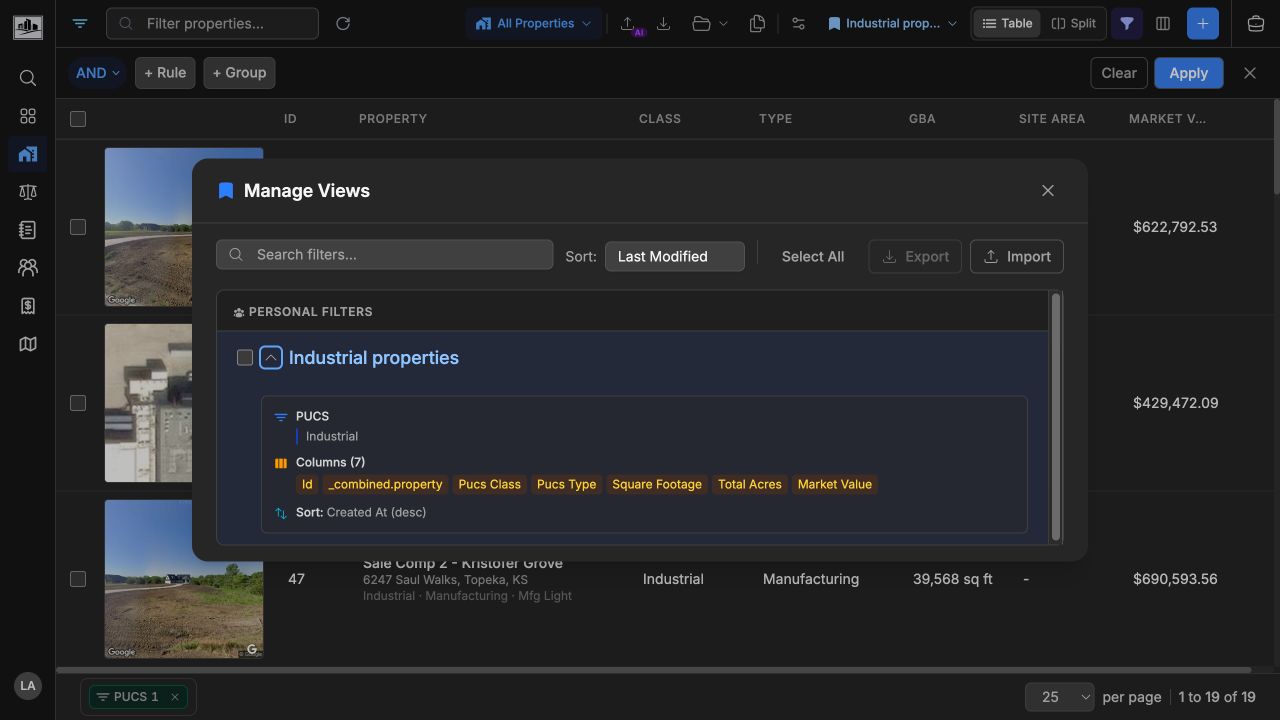
The manage panel lets you:
- Search saved views by name or description.
- Sort by last modified date, created date, or name.
- Select multiple views for export.
- Import saved filter JSON.
- Apply, edit, or delete views when permissions allow it.
System views may be available in some workspaces. They can be loaded like other views, but editing or deletion depends on permission and whether the view is protected.
Map-Linked Filters
Section titled “Map-Linked Filters”Split and map views can add a search area filter. When a search area is active, the list only returns records within the drawn area. Active filter indicators show PUCS, advanced, and search area filters together, with controls to open or clear each filter.
Related Features
Section titled “Related Features”- Property Database for PUCS filtering.
- Comparable Analysis for comparable and property field filters.
- Interactive Mapping for search area filters.