

AI Search
AI Search lets you ask for records in plain English, then turns your request into structured filters that can be reviewed and applied to the property table.
It is designed for exploratory searches such as:
AI Search can search across properties, sales, leases, cost records, and income and expense records. Results are grouped by record type so you can jump directly to the relevant table or open an individual record.
Use AI-Assisted Search
Section titled “Use AI-Assisted Search”Use the AI badge next to Global Search in the sidebar, or open Global Search and switch to AI mode.
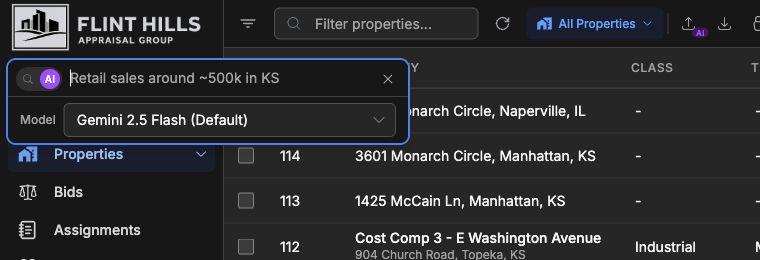
When AI mode is active, the input supports natural-language prompts instead of simple keyword matching. Press Enter to run the search. Use Shift+Enter when you need a second line in the prompt.
The model selector appears before you run a search. The selected model is saved for your browser session and reused the next time you open AI Search.
Review Results
Section titled “Review Results”After you submit a query, AI Search explains what it searched for and returns matching records grouped by entity type.
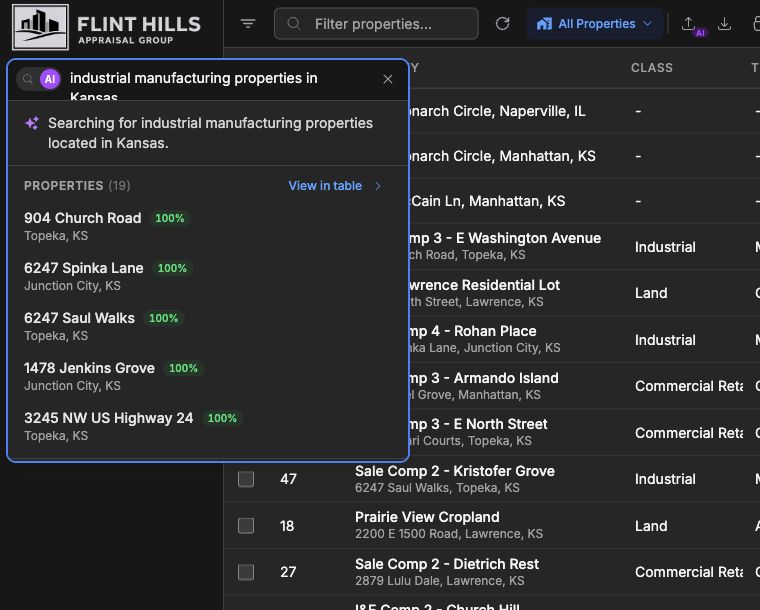
Each result group includes:
- Explanation - a short summary of how your prompt was interpreted.
- Preview records - up to five matching records from that group.
- Match percentage - shown when the AI produced a scoring profile.
- View in table - applies the generated filters to the list view.
- AI usage footer - model and response time for the search.
Click a preview record to open it directly. Click View in table when you want to inspect, refine, save, or export the filtered results.
Apply Filters To The Table
Section titled “Apply Filters To The Table”When you choose View in table, the generated filters are applied to the standard table tools. You can review and edit them before continuing your work.
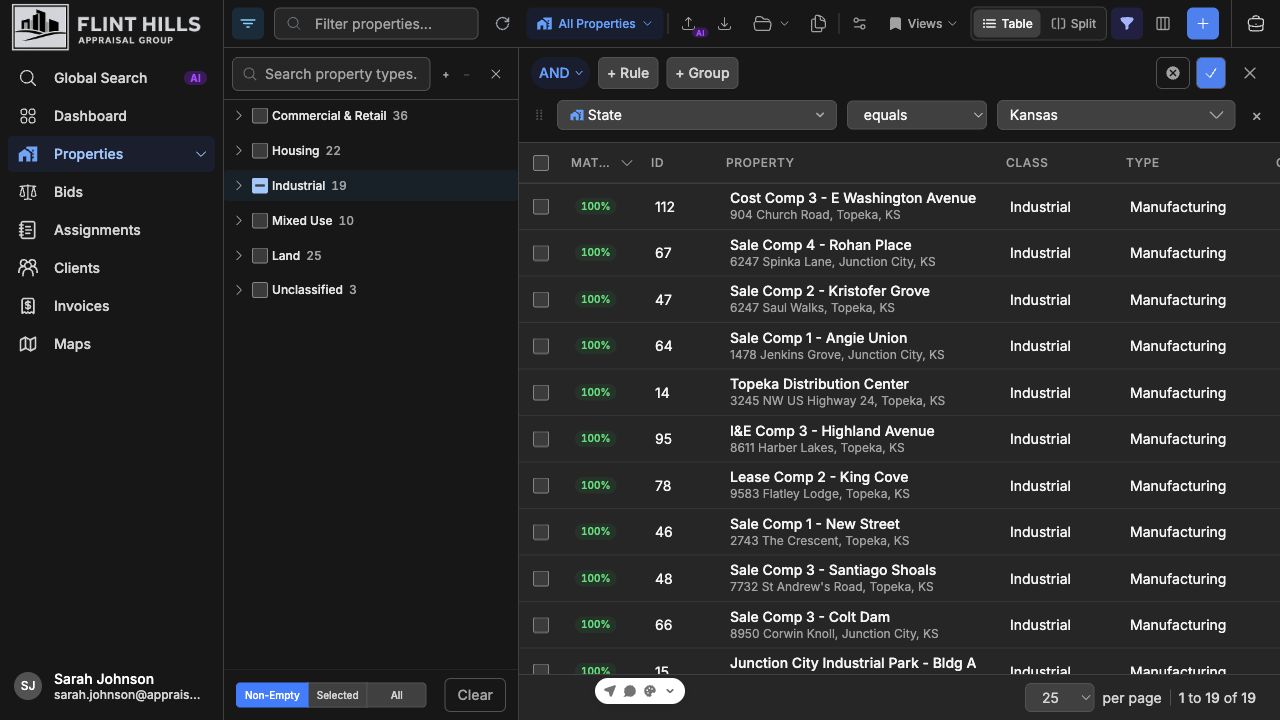
Depending on the query, AI Search may populate:
- Property Type Filter for Property Use Classification System (PUCS) class, type, and subtype matches.
- Advanced Filters for fields such as state, city, sale price, rent, acreage, market value, or date ranges.
- Comparable type when the result group is sales, leases, cost, or income and expense.
- Match percentage sorting when AI scoring criteria are available.
The applied filters are normal table filters. You can add rules, remove rules, switch table views, export results, or save a view the same way you would after building filters manually.
Query Tips
Section titled “Query Tips”Be specific about record type and location when possible:
| Prompt pattern | Example |
|---|---|
| Property class and location | industrial manufacturing properties in Kansas |
| Comparable type and price | retail sales over $1M in Topeka |
| Lease economics | leases in Manhattan above $20 per square foot |
| Income metrics | income records with NOI over $100k |
| Site characteristics | land properties over 10 acres near Lawrence |
If a query returns no results, broaden one part of the request first. For example, remove a price target, widen the location, or search for the property class before adding more constraints.
Availability
Section titled “Availability”AI Search appears when AI features and natural-language search are enabled for your organization. Queries are processed by the configured AI provider to translate your request into structured filters, then the database search runs inside your organization’s normal permissions and access controls.
AI Search is rate limited to protect service capacity. If you submit too many AI searches in a short period, wait for the retry window shown in the error message before trying again.