

Comparable Analysis
Comparable records store market evidence used in assignments and property analysis. re-base.io manages four Comp Set-compatible comparable types—sale, lease, income/expense, and cost—from the property workspace. Rent Rolls are a separate property-linked snapshot type.
Choose A Comparable Type
Section titled “Choose A Comparable Type”Open Properties, then use the data type control to switch from properties to a comparable type:
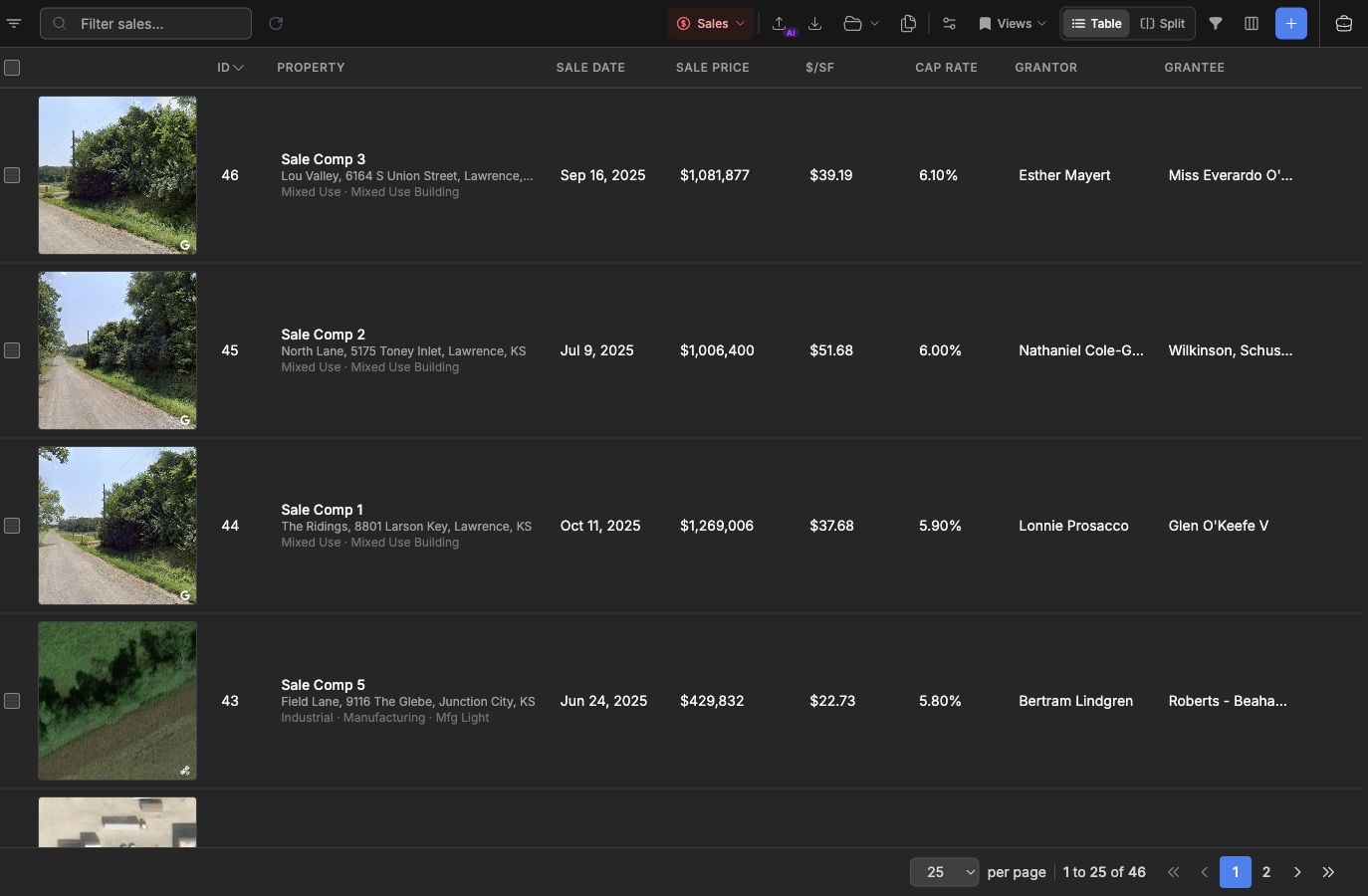
- Sales for sale date, sale price, parties, and price metrics.
- Leases for tenant, rent, term, suite, and lease structure.
- Income/Expense for income, expense, NOI, and capitalization data.
- Cost for construction, replacement, and cost approach records.
Rent Rolls appear as another property data type, but they are not included in Comp Sets. See Rent Rolls for that workflow.
Each comparable type has its own default columns, search fields, and sort order. The URL changes with the selected type, so links can open directly to the current comparable view.
Create And Edit Comparables
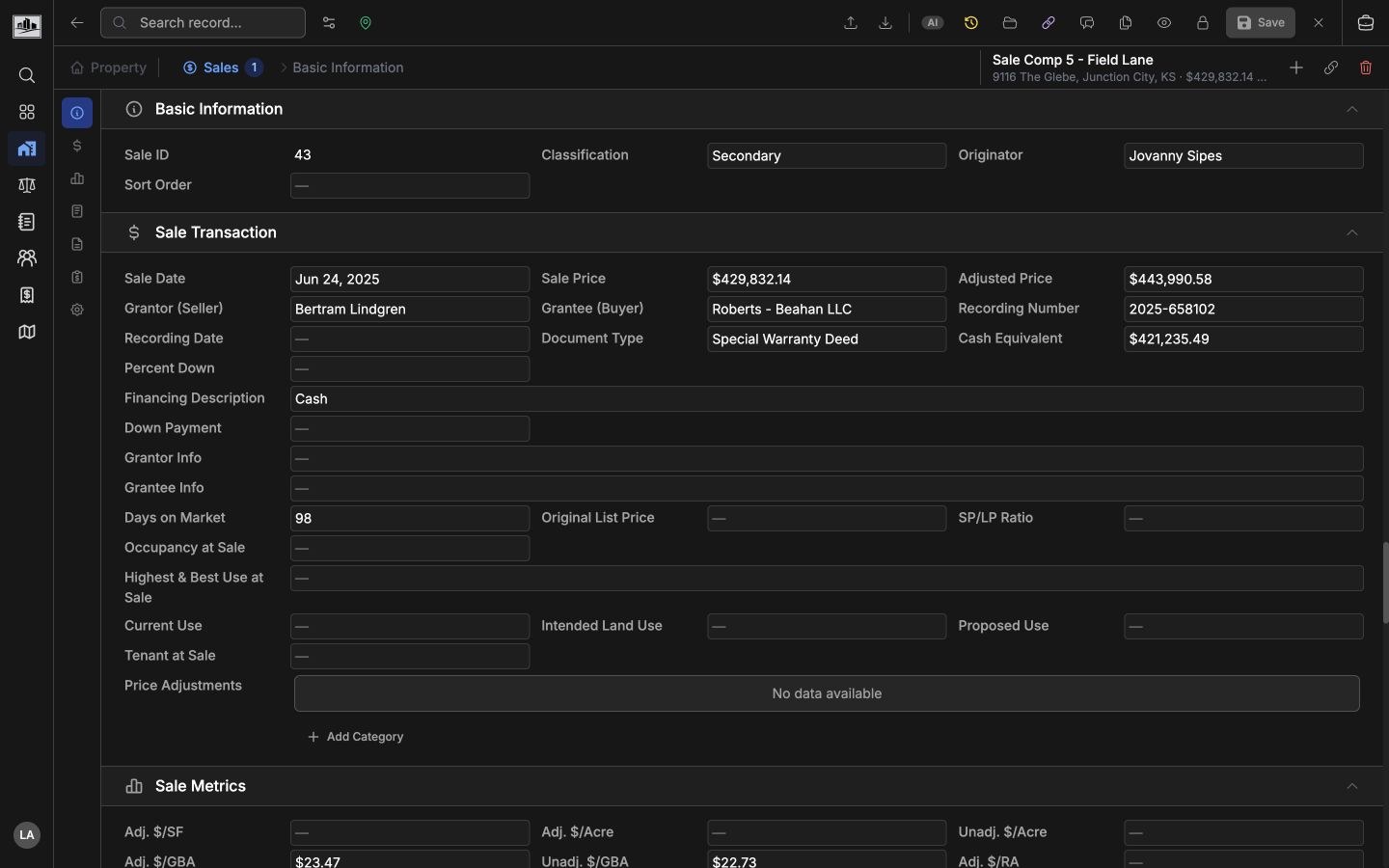
Section titled “Create And Edit Comparables”Use the add action in a comparable view, or start from a property detail page when the comparable should be tied to that property. Comparable forms use the same sectioned record layout as other entities and include related property, assignment, creator, and last-modified context where available.
Comparable rows support table search, advanced filters, saved views, exports, and row actions. Use View on Map when location is important. If assignment management is enabled, comparables can be added to assignments from row actions or assignment workflows.
Filter Comparable Data
Section titled “Filter Comparable Data”Property Use Classification System (PUCS) filters apply through the related property. For example, selecting a PUCS class while viewing sales returns sale comparables whose related properties match that class. Advanced filters can target comparable fields and shared property fields; active filters are shown in the list and map views.
When Comp Sets are enabled, use them to scope the list to a saved analysis set or add selected comparable markers to a set.
Compare An Assignment Side By Side
Section titled “Compare An Assignment Side By Side”Open an existing assignment with at least one subject and one comparable, then choose Compare. The near-fullscreen table places field labels on the left and the subject and comparable records across the page. Record headers include the property photo when available, subject/comparable role, property name, address, and a detail link.
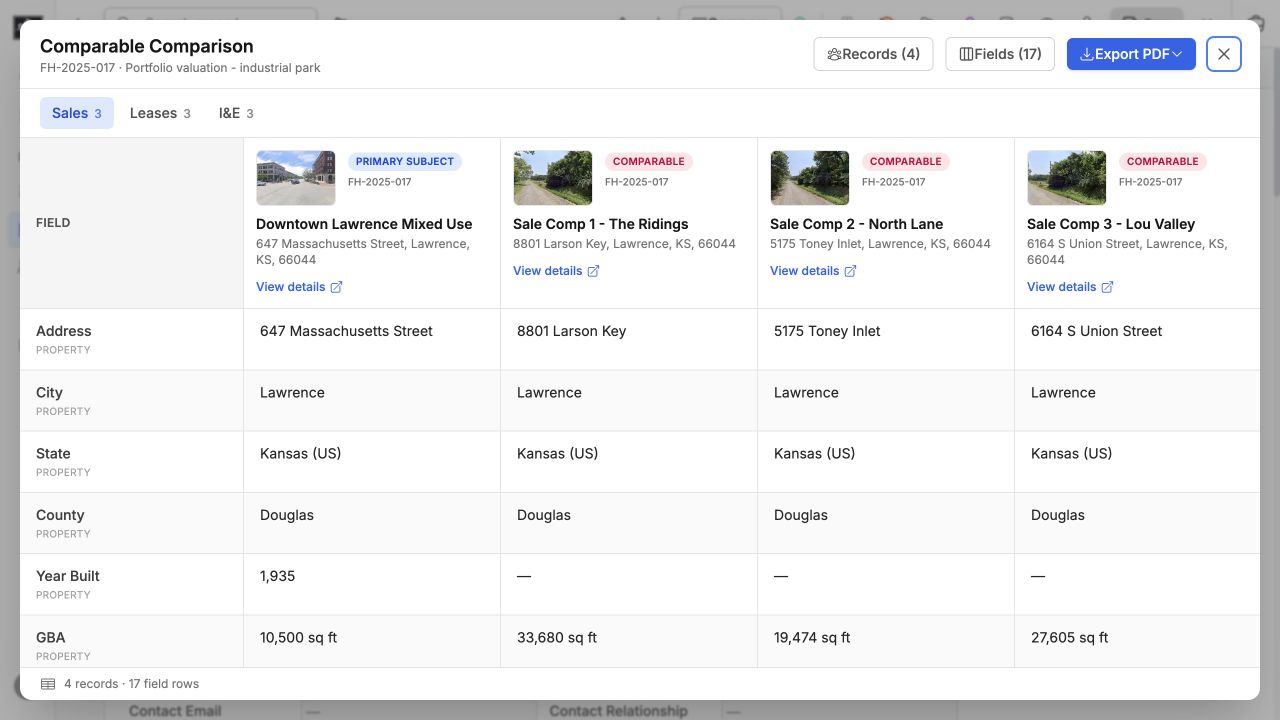
Comparison tables preserve the assignment order: the primary subject appears first, followed by secondary subjects and the saved order for the active comparable type. Use Records to change which records are shown without changing the assignment. Use Fields to search, enable, disable, reorder, or reset property and comparable rows.
If the assignment contains several comparable types, a type control appears in Sales, Leases, I&E, and Cost order. Each type keeps its own personal last-used field layout. Restricted values retain their lock treatment in the comparison and its export.
Choose Export PDF for the visible type, or choose All types to begin each non-empty type on a new page in one branded file. Exported tables use the same records, field order, formatting, restrictions, and photo fallbacks shown on screen.
Related Features
Section titled “Related Features”- Property Database for the related property records.
- Comp Sets for curated, reusable comparable groups.
- Assignments & Workflow for ordered assignment comparables.
- Interactive Mapping for mapped comparable review.
- Rent Rolls for property-linked unit-mix snapshots.