

Confidentiality & Sharing
Use record restrictions when ordinary role permissions are not enough for a sensitive assignment, property, comparable, client, or related record.
Choose A Restriction Level
Section titled “Choose A Restriction Level”| Level | Effect |
|---|---|
| None | Normal organization permissions apply. |
| Confidential | The record remains discoverable to permitted users, while configured sensitive fields can be masked. |
| Restricted | Access is limited to users or roles allowed by the restriction policy. Database row security enforces the boundary. |
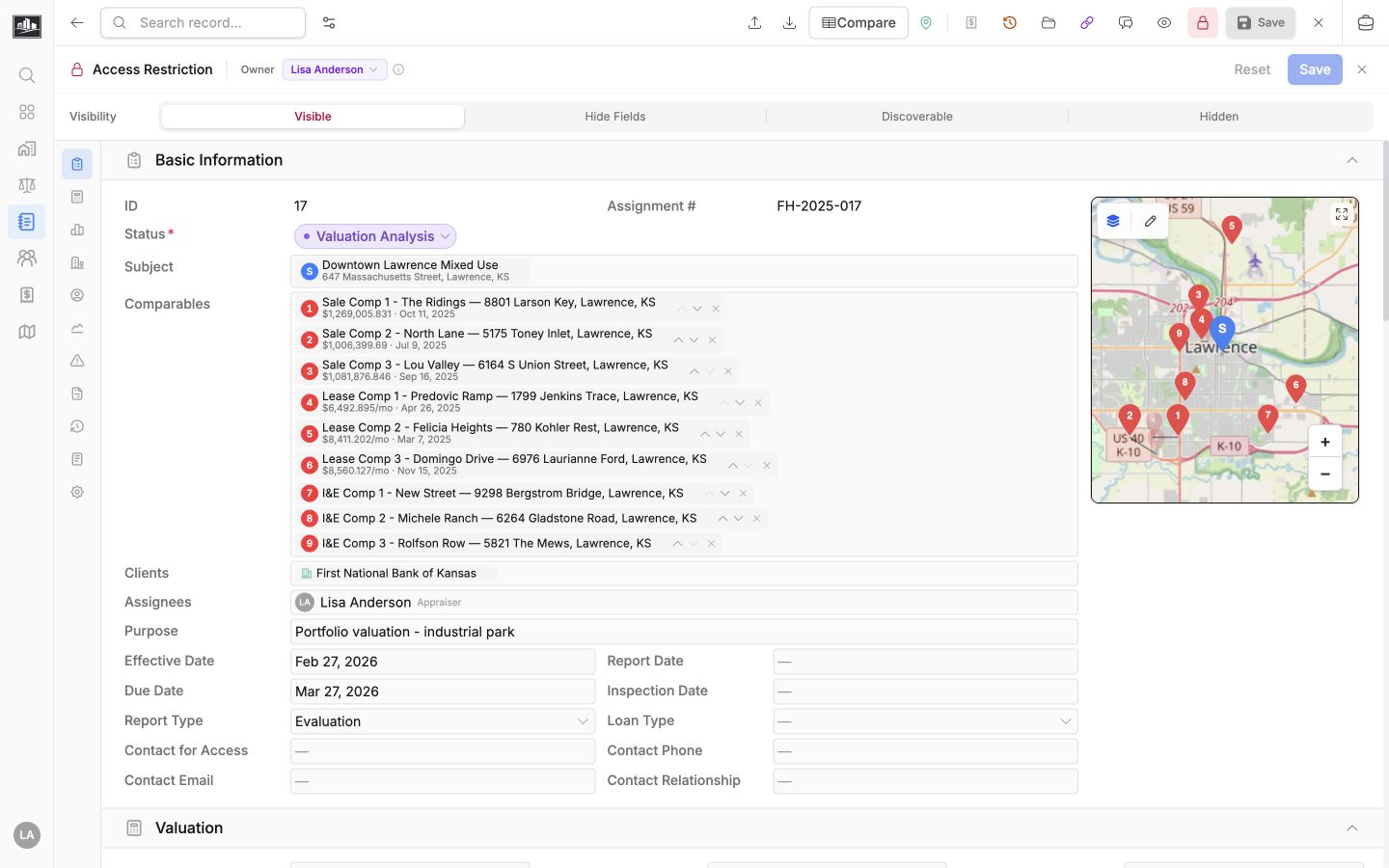
The exact fields masked on a confidential record depend on the entity and your organization configuration. Financial details, party names, and internal notes are common examples. Hiding a column in a saved view does not protect its data; use the record restriction controls.
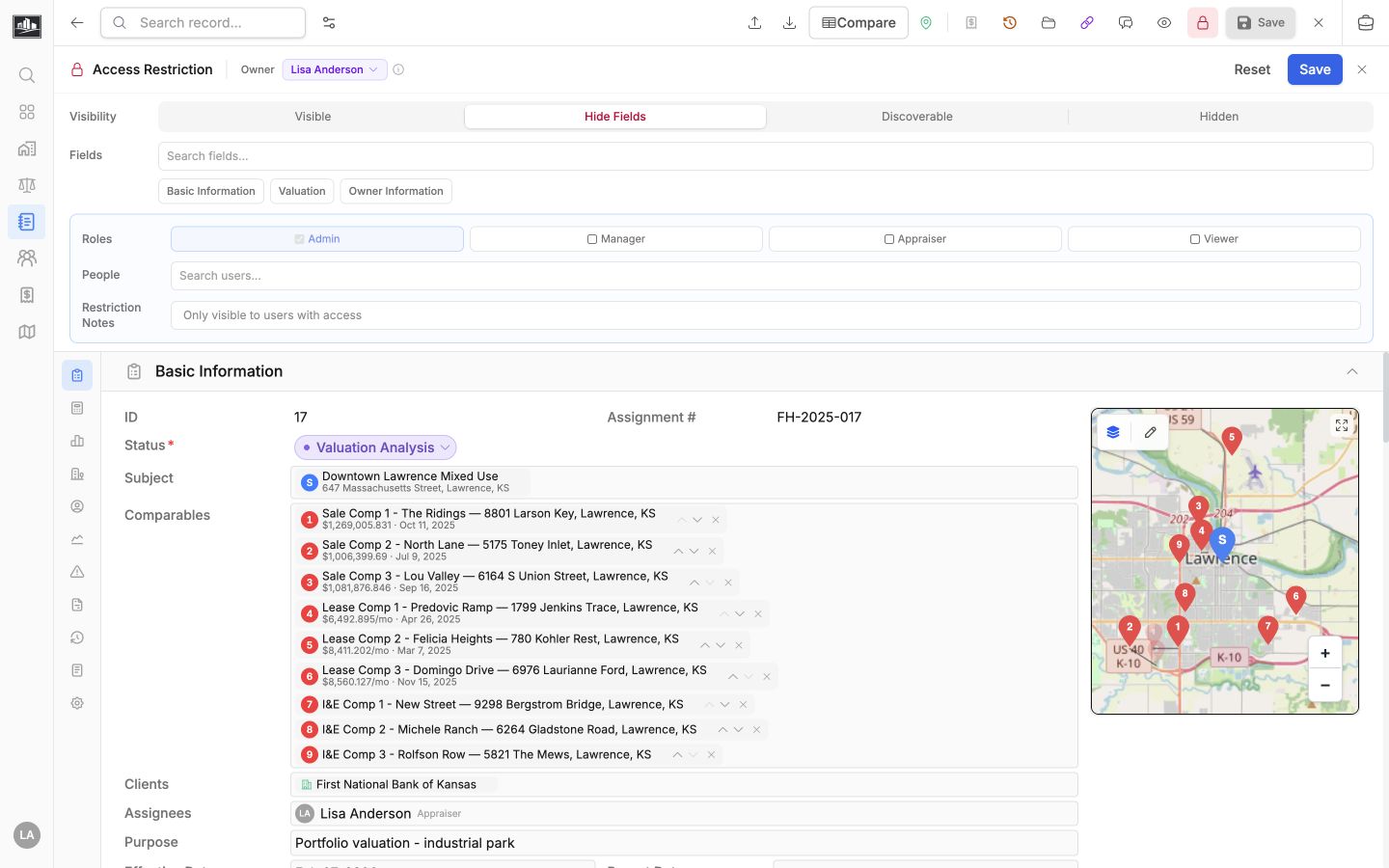
Share A Restricted Record
Section titled “Share A Restricted Record”Open the record’s access or restriction controls, then add the specific users or allowed roles that need access. When an expiration option is available, use it for temporary reviewers or project-specific access.
Before sharing:
- Confirm the recipient already belongs to the correct organization.
- Grant only the access needed for the engagement.
- Set an expiration for temporary access.
- Review related files and child records, which may have their own controls.
Removing a share stops future access; it does not retract data already exported or downloaded.
Review Access History
Section titled “Review Access History”Restriction changes and access activity are recorded for audit review when the relevant audit features are enabled. Administrators can use the audit tools to confirm who changed a restriction, who was granted access, and when access was attempted.
If you cannot open a restricted record, ask an administrator or the record owner to review the policy. Do not work around the restriction by copying data into an unprotected record.